This is an old revision of the document!
Single-Sign-On using SAML 2.0
Starting with version 5.0, Admidio can be used by other applications to authenticate users against Admidios user base. Other applications can use Admidio's user database to log in users into the app. The user has to log in only to Admidio and is automatically given access to other (configured) applications. The other applications do not have to store or process any passwords.
All examples here use the domain https://admidio.demo.open-tools.net/ as Admidio domain and https://[appname].demo.open-tools.net/ for the client applications.
To set up Admidio as a SAML 2.0 Identity Provider (so that other applications can use the Admidio user base for their logins), one has to take three steps:
- General Setup of the IdP in Admidio (create a cryptographic key, an ID, etc.)
- Configuration of the client app (Service Provider): enter the Admidio URLs for Single-sign-on (SSO) and Single-Log-Out (SLO), as well as the public key / certificate of the Admidio IdP. Some clients even support downloading the metadata xml directly from Admidio for almost automatic setup.
- Set up Admidio respond to reqruest from that particular client, too. This involves configuring the ID (typically the URL) of the client, the script URL where the user should be redirected after login, as well as the cryptographic certificate to sign/encrypt messages. For most clients, these data can be downloaded automatically through xml metadata.
How does Single-Sign-On work?
Traditional Log-In
 The default login process to an app (the “Service Provider”, i.e. SP) works with the following steps:
- User clicks on “Log In”
- The app determines whether the user has access: It displays a login form, checks the entered Username and Password (hash), and if they exist and match, makes the decision to grant access.
- the app now knows that the user has successfully logged in and creates an appropriate session to keep the user logged in.
Step 2 are done by the application in this case, but there is no technical requirement for this. In principle, the decision that a user has successfully logged in can be done by any trusted system. This is where single-sign-on hooks in: Rather than each app requesting and processing passwords, step 2 is delegated to a so-called identity provider (“idP”). That identity provider needs to be trusted, and it will take over the part of checking whether a user has access permissions (by e.g. entering a password or using a fingerprint, etc.).
Single-Sign-On using an external Identity Provider (IdP)
There are two established technical protocols for Single-Sign-On: SAML 2.0 (XML-based, widely used by large-scale bussiness applications and e.g. Microsoft ADFS) and OpenID Connect (OIDC) (JSON-based using “Tokens”; used by many web / social apps like Google, Facebook, etc.).
In the SAML case, the login flow above changes to the following. But but from a user perspective, the same steps of entering a password are done, just at a different system. The browser redirects involved in the flow, are hardly noticed by the user and don't require user interaction.
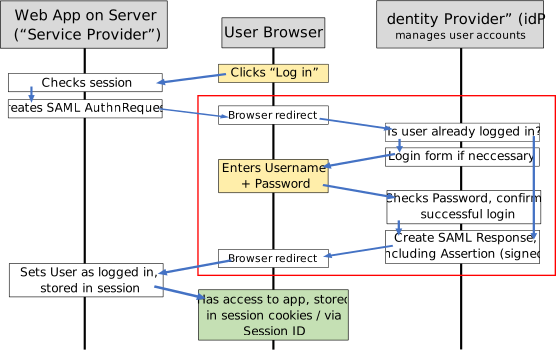
- User clicks on “Log In”
- The app does not determine user login itself. Instead it relies on a third party (the “Identity Provider”, short IdP) to determine whether a user has access:
- It creates an XML containing an XML “AuthnRequest” and redirects the browser to the IdP (Admidio in our case)
- If the user is not logged in to Admidio, it shows the login screen
- Admidio checks the login of the user (and whether the user is member of the permitted groups)
- If login is successful (or the user was already logged in), access should be granted. This is documented in XML data (the “Assertion”; cryptographically signed to prevent man-in-the-middle attacks) and sent back to the Service provider by a browser redirect.
- In addition to the username, the Assertion returned to the SP can also contain further user information (email, first/last name, etc.) and groups/roles.
- The client app (Service Provider) now knows that the user has successfully logged in to Admidio and creates an appropriate session to keep the user logged in.
There are some things to notice about the way SAML authentication works:
- All password handling and requesting is done by Admidio alone. The Service Provider (client app) never receives, asks or has to handle passwords.
- It is extremely important to ensure that the requests are really sent to the right system and the returned responses really originate from the authorized IdP. This can be assured by using public key cryptography, in particular by signing each request and response by private keys that ar only known to the SP and IdP, in turn. During initial set up, the corresponding certificates (signed public keys) need to be exchanged, which is the main part of setting up SSO (in addition to providing the URLs of the SP and IdP to each other).
- The IdP and the SP never communicate directly, only through the user's browser! As a consequence, the IdP and the SP can be in separate networks, e.g. the IdP can even be in a private network without access from the internet, as long as the user's browser can connect to it.
A. Basic Setup for Admidio as a SAML ID Provider
Admidio's SSO configuration is done in the preferences (Tab “Modules”, section “Single-Sign-On (SAML 2.0, OpenId Connect)”).
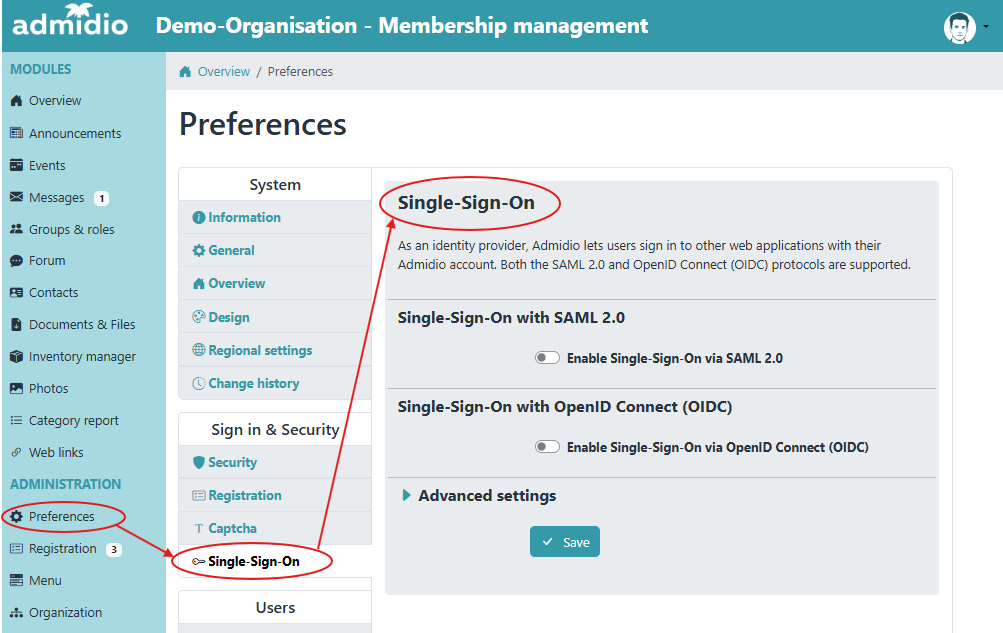
1. Generating a Cryptographic Key for Signing and Encryption
- The first thing to do is to create a cryptographic key (typically an RSA key with 2048 bit). For this, use the “SSO cryptographic Keys Administration” button to switch to the key administration page.
 At the “SSO Cryptographic Keys Administration” page, create a new key (typically RSA with 2048 bits).
 - Also enter the URL of the Admidio installation as “Common Name”. The other required fields (Organisation, OU, city, etc.) must be filled, but their value is not relevant. Make sure that the expiration date is long enough! By default, an expiration of two years is suggested.
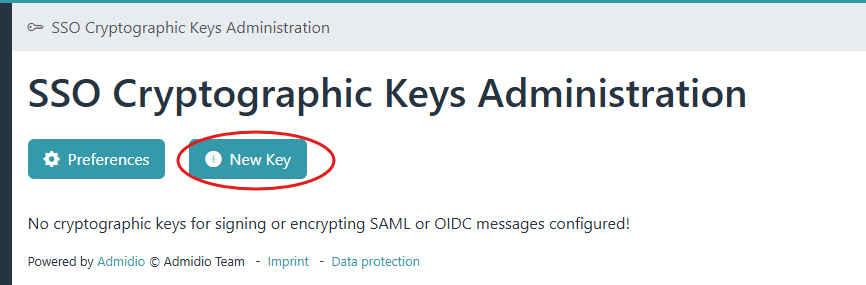
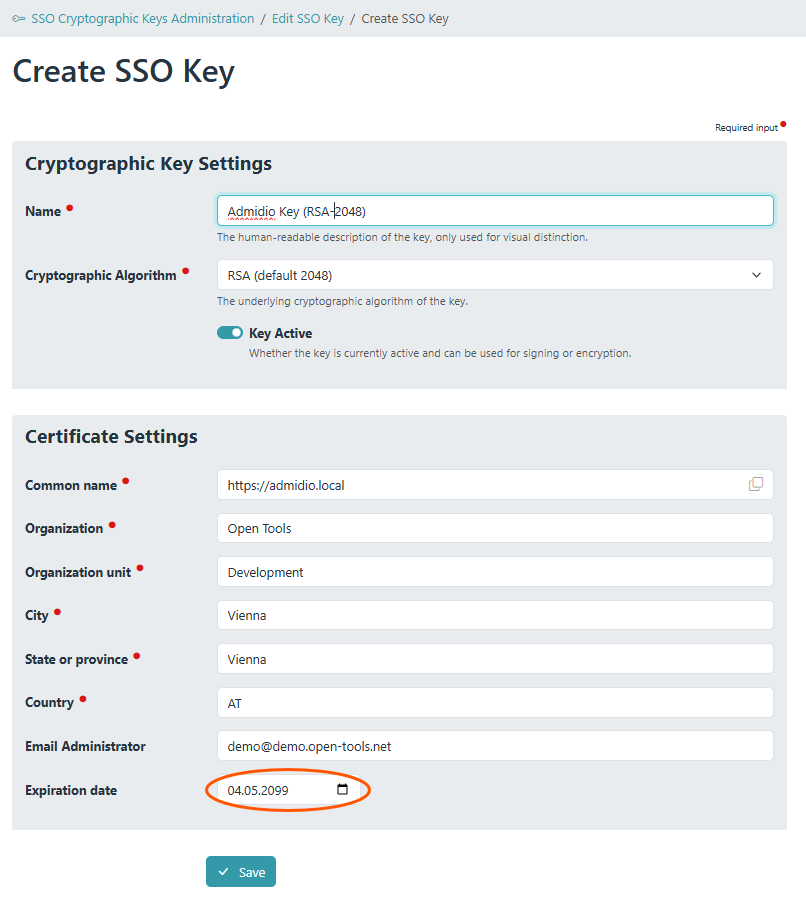
- The key should now be listed and activated. Return to the “Preferences” for further setup.

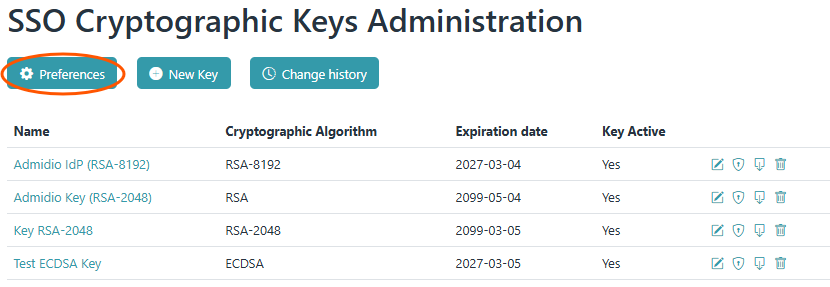
2. Configuring Admidio as IdP
- In the SSO section of the preferences, you now need to enable SAML 2.0 Single-Sign-on and configure the following settings:
- SAML Entity ID: The URL of your installation (needs to be a unique ID, the URL is usually used, but not required)
- Key for signatures: Select the key that you just generated; will be used to cryptographically sign the messages to the Service Provider to prevent man-in-the-middle attacks
- Key for Encryption: If the SP requires (or recommends) encrypting the messages, you can select a key for encryption, too. This can be (but does not have to be) the same key as for signatures.
- Select whether Admidio adivses all SPs to sign their messages in turn. This requires each client to have a cryptographic key generated for itself, which some clients (e.g. DokuWiki) do not support. Clients that do not support signatures, will still work, this is just a declaration of preference by Admidio!
- Save
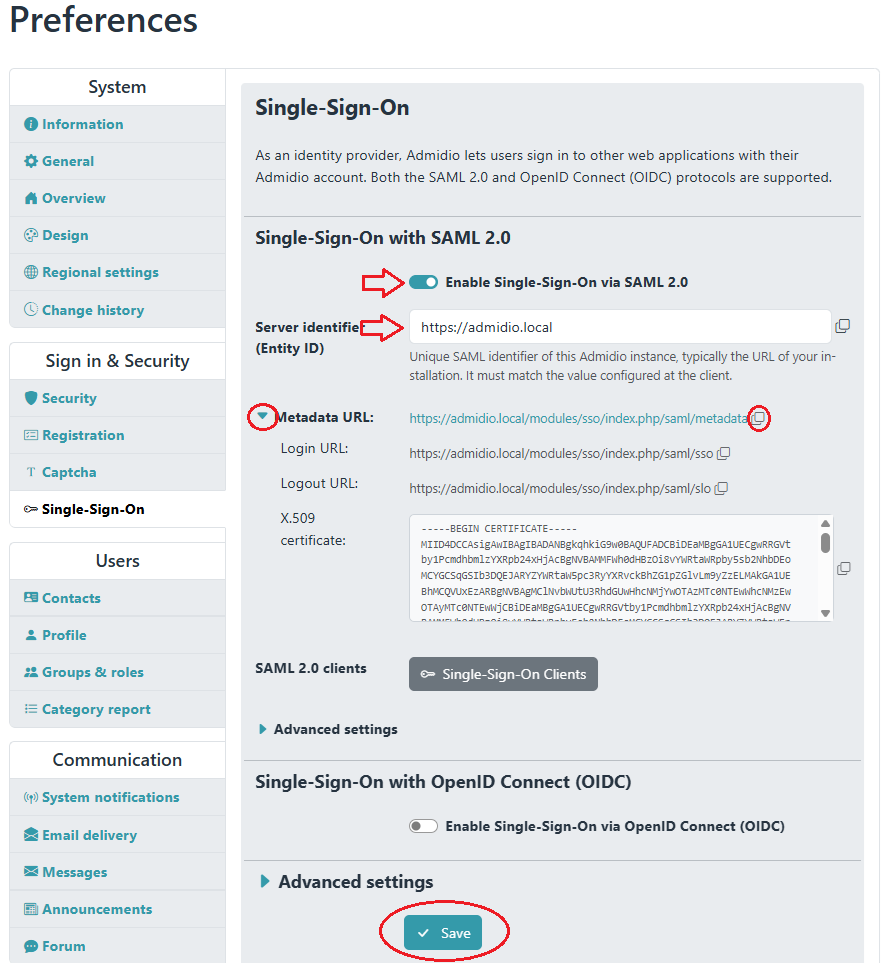
The Preferences page also lists all the relevant data to set up the client as a Service Provider. Particularly useful will be the Metadata URL, which provides all data to set up a client (SP) in XML format. You don't need to do anything, the SSO plugin for Admidio provides this out of the box. Here is an example of such a metadata xml:
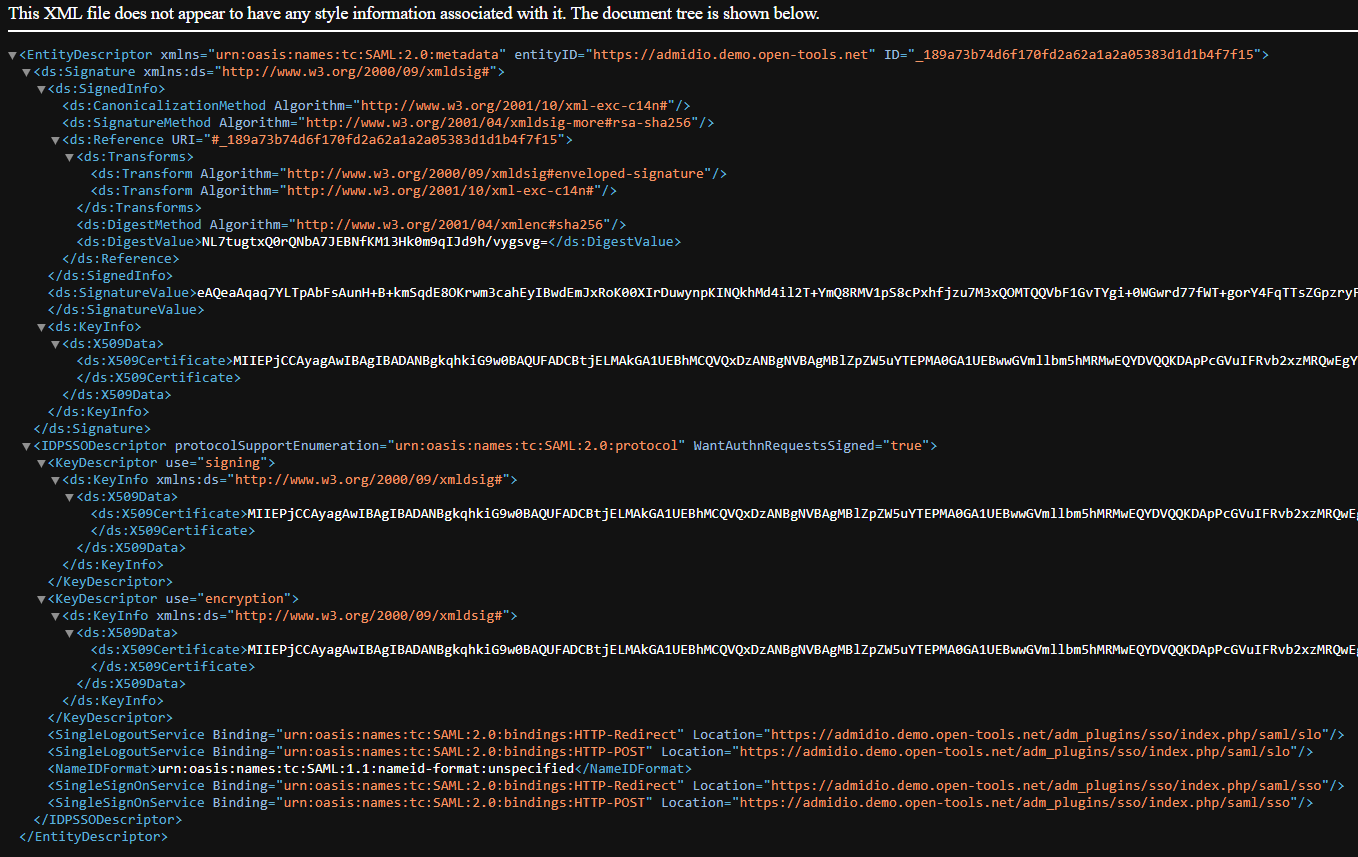 Notice that it contains both the public key / certificate of the signing and encryption keys, as well as the URLs to the SingleSignOnService (SSO) and the SingleLogOutService (SLO) at the admidio installation. Furthermore, the first half of the XML contains the cryptographic signature of the XML, signed with the private key to prove that the metadata file actually comes from the admidio installation and not from some adversary.
Admidio is now ready to provide single-sign-on functionality to Service Providers.
Each SP first needs to be set up with the URLs (and keys) to connect to Admidio. This can ideally be done by providing the SP with the link to the metadata. After that, Admidio needs to be configured to accept login requests from the SP. Again, each SP typically provides the required data as a metadata XML, which can be loaded in Admidio to set up the client for Single-sign-on functionality. The details depend on the actual client app.
Here we show the setup at the examples of:
- DokuWiki and
B. Configuring an App (Service Provider) to use SSO with Admidio
Once Admidio is set up to act as a SAML 2.0 IdP, the clients (Service Providers, “SP”) can be configured to use Admidio as their login provider. Many systems either support SAML 2.0 out of the box or with some plugin. The following settings are needed for setup. They are also available for copying at Admidio's SSO preferences page, as well as in the metadata xml.
- Metadata URL (optional; for automatic setup of clients): https://[YOUR_ADMIDIO_URL]/adm_plugins/sso/index.php/saml/metadata
- If your SP supports entering and loading the metadata XML, make sure to use it. It will load the correct settings from the SAML IdP and set up most settings correctly!
- IdP SAML Entity ID (unique identifier of the Admidio instance): https://[YOUR_ADMIDIO_URL]
- SSO Endpoint (where the SP sends the login request): https://[YOUR_ADMIDIO_URL]/adm_plugins/sso/index.php/saml/sso
- SLO Endpoint (where logout requests are sent to): https://[YOUR_ADMIDIO_URL]/adm_plugins/sso/index.php/saml/slo
- x509 Certificate (to allow clients to verify the cryptographic signatures): PEM-format needs to be copied out of the Admidio preferences
- User attribute mapping: Which SAML attributes returned with the login confirmation (“Assertion”) correspond to the login name, the full name, the email and possibly the user's group memberships in the SP system.
In addition each client typically has settings to require sent or received SAML messages to be signed and/or encrypted to ensure a secure login process. The details depend on the capabilities of the client. Some clients do not support encryption, other require all SAML messages to be signed (for good reason!). Also, some clients offer a setting that SAML login is only possible for users that are already manually created in the SP, while others offer a setting to automatically create user accounts on successful SAML login.
The details always depend on the particular client. Below, we will show the configuration at the examples of DokuWiki, Nextcloud and Wordpress.
C. Configuring Admidio with the Service Provider
Once the client is set up to send authentication requests to Admidio, Admidio needs to be configured to respond to them. All SAML clients (Service Providers) are configured in the SSO Client Administration page, which can be reached from the SSO Preferences page (https://admidio.demo.open-tools.net/adm_program/modules/preferences.php?panel=sso) from the SSO SAML preferences page.
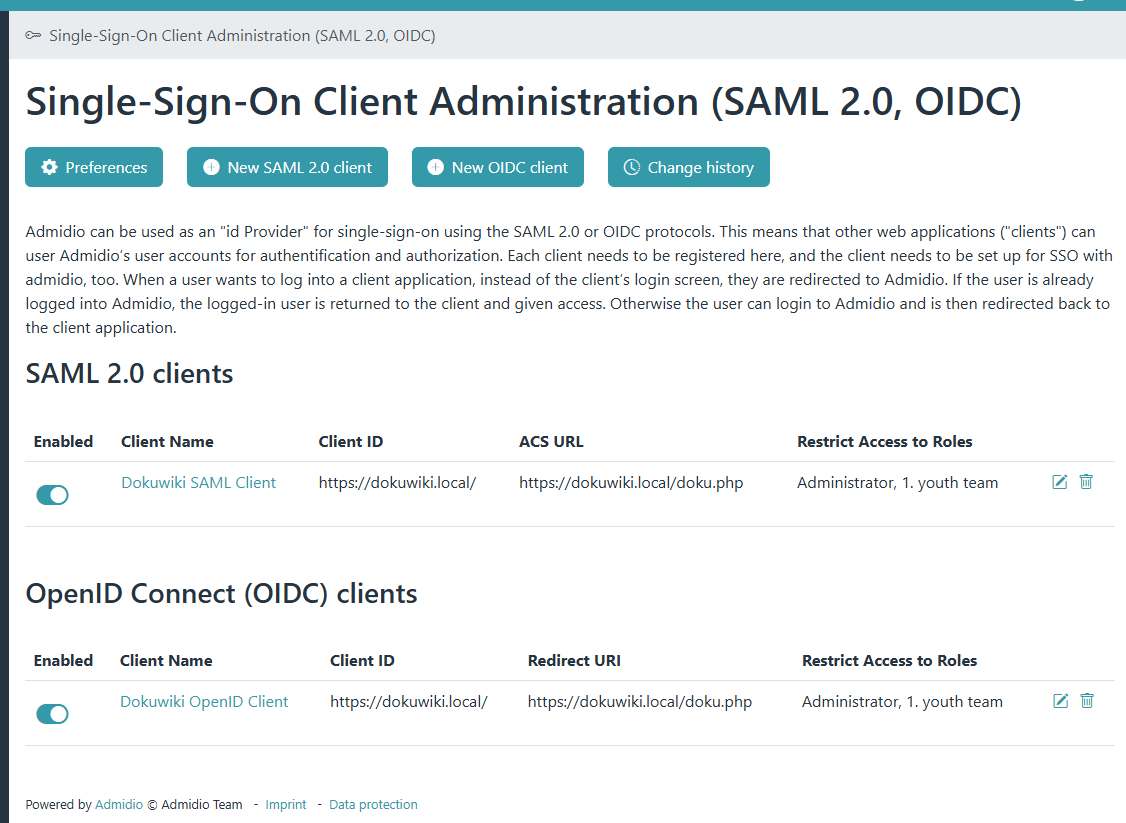
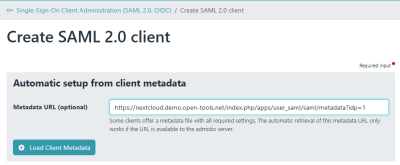
To ensure only legitimate login requests from the real client are processed, Admidio needs the entity ID, the URL for redirect as well as the x509 certificate (if messages are cryptographically signed). The following settings are needed for setup. They MUST be consistent with the settings configured in the SAML client (SP). Many SPs provide a Metadata XML link or file with all required settings included for automatic client setup. In Admidio's SAML client section, one can input the metadata URL and Admidio will pre-configure the client, but manual adjustments are possible (and in many areas even needed).
- Metadata URL (for automatic setup of clients): https://[YOUR_ADMIDIO_URL]/adm_plugins/sso/index.php/saml/metadata
- If your SP supports entering and loading the metadata XML, make sure to use it. It will load the correct settings from the SAML IdP and set up most settings correctly!
- IdP SAML Entity ID (unique identifier of the Admidio instance): https://[YOUR_ADMIDIO_URL]
- SSO Endpoint (where the SP sends the login request): https://[YOUR_ADMIDIO_URL]/adm_plugins/sso/index.php/saml/sso
- SLO Endpoint (where logout requests are sent to): https://[YOUR_ADMIDIO_URL]/adm_plugins/sso/index.php/saml/slo
- x509 Certificate (to allow clients to verify the cryptographic signatures): PEM-format needs to be copied out of the Admidio preferences
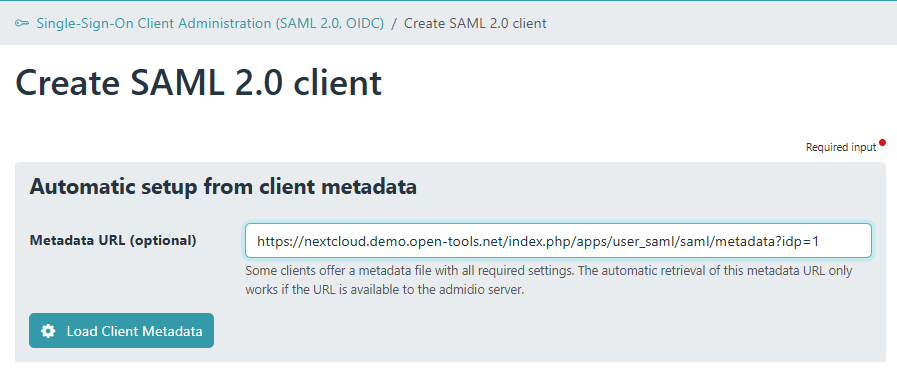
- User ID: Whether the client gets the numeric Admidio user id, the globally unique UUID, or the user's login name as user ID
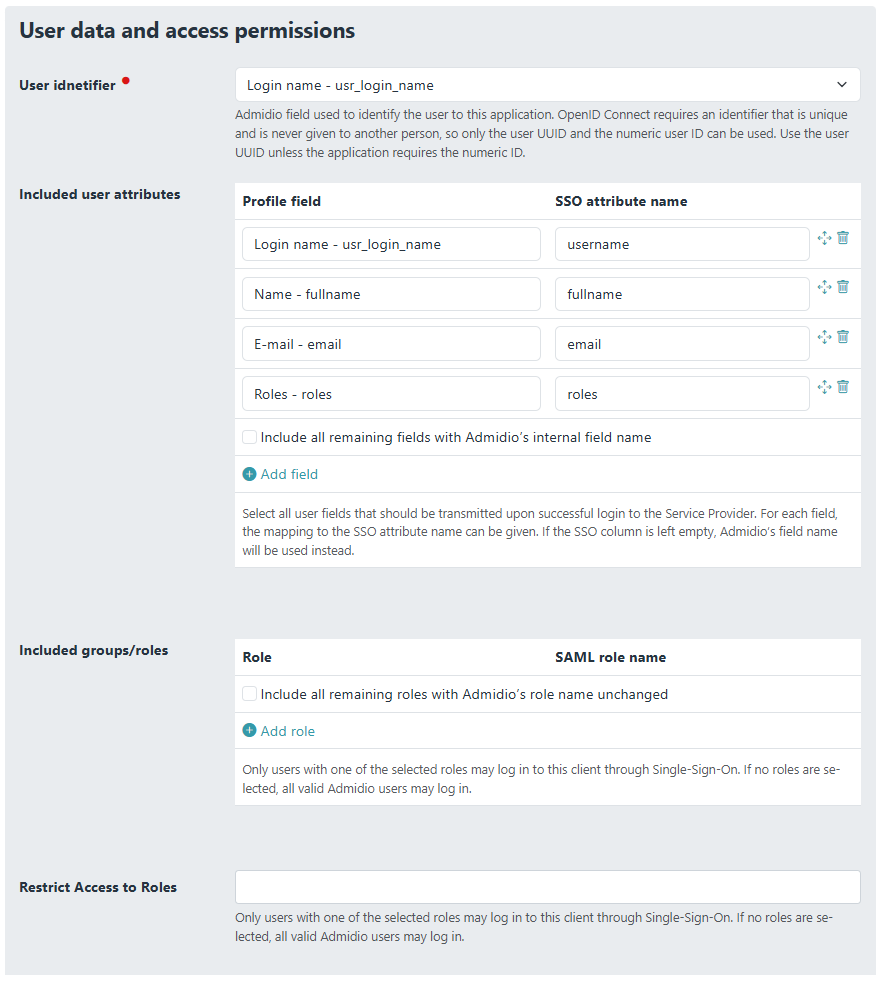
- Further profile data/fields transmitted to the client on successful login
- Which roles / group memberships are sent to the client on successful login. The data fields and groups can be mapped to different names, if the client cannot handle Admidio's fields and role names. On particular case is the admin role, where many clients use a role named “admin” to grant admin access to a user logged in via SAML.
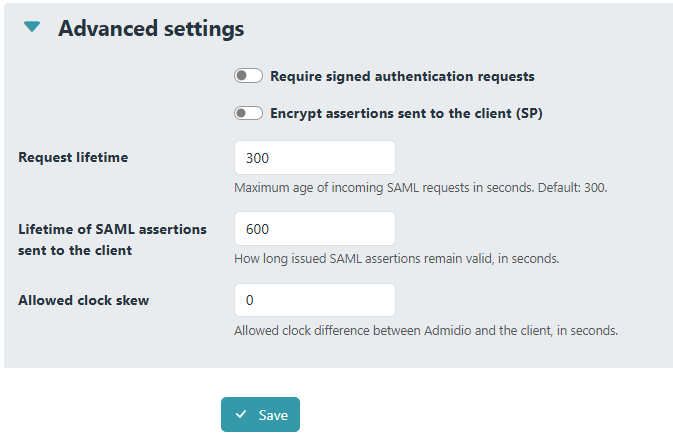
In addition each client typically has settings to require sent or received SAML messages to be signed and/or encrypted to ensure a secure login process. The details depend on the capabilities of the client. Some clients do not support encryption, other require all SAML messages to be signed (for good reason!).
D. Setting up Nextcloud for Single-Sign-On
Here we describe, how Nextcloud can be configured to use Admidio's login to authenticate users. It is assumed that Admidio is already configured to act as an IdP, as described in section "A. Basic setup for Admidio as a SAML id Provider (create a cryptographic key, an ID, etc.).
Configuring the Service Provider (Nextcloud)
SAML 2.0 login in Nextcloud is provided by the app “SSO & SAML authentication”.
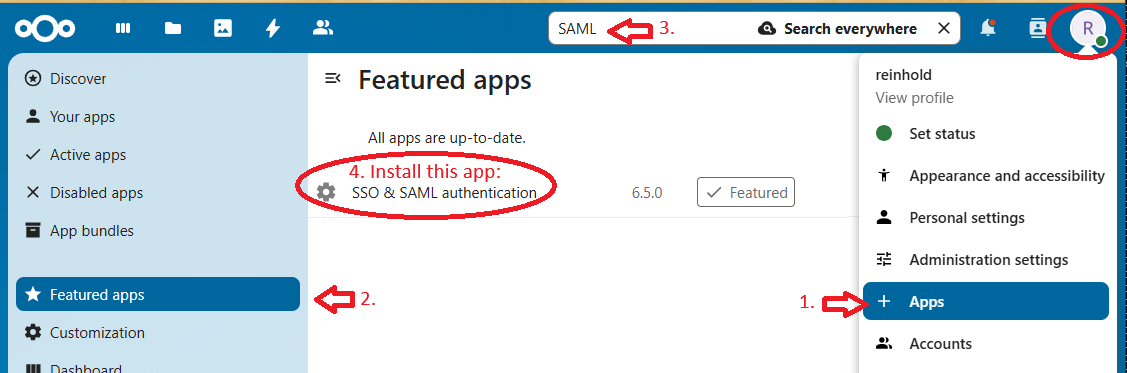
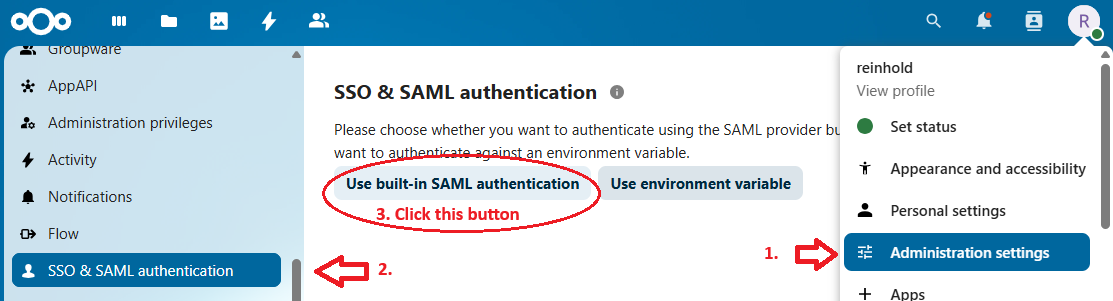
After installation it can be configured in Nextcloud's “Administration settings” in the section “SSO & SAML authentication”. First, one needs to choose the built-in SAML authentication (one-time setting after first installation).
Nextcloud does not support automatic configuration from IdP metadata, so one has to copy the correct settings over from the Admidio preferences. It is a good idea to keep two browser windows open so one can easily select and copy the settings. Admidio even provides little “copy” buttons/icons to copy the various settings to the clipboard for easy pasting into Nextcloud's configuration.
This is a typical configuration of the Nextcloud SAML plugin for Admidio as an idP:
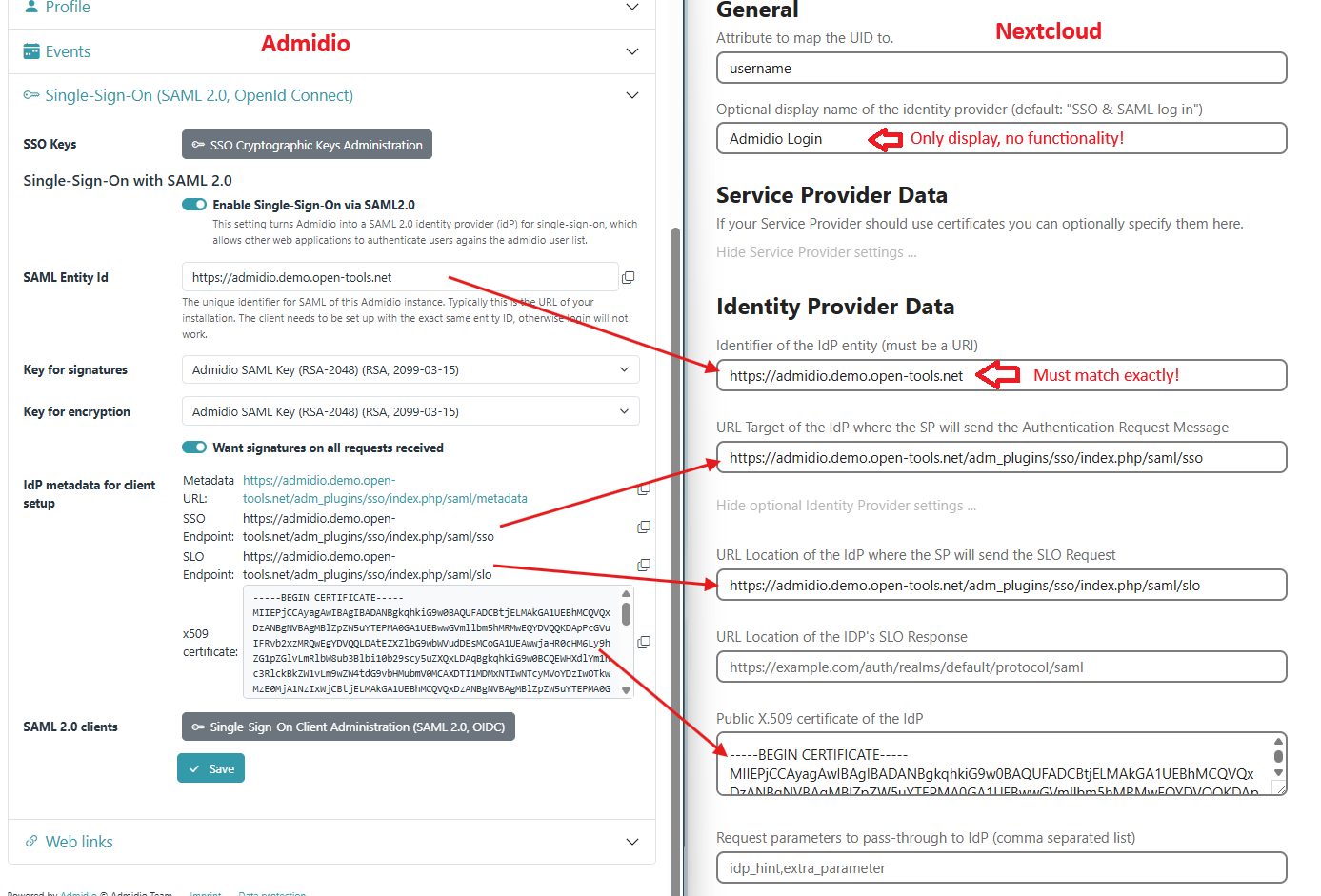
Once these basic SAML settings are done, I would recommend to set up the SP in Admidio, and do the remaining settings (transmitted fields and roles, as well as signing/encryption requirements) in parallel in Nextcloud and Admidio.
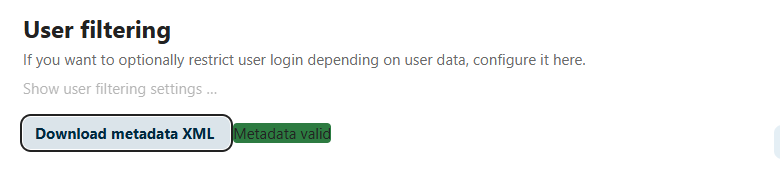
If the basic settings are valid, Nextcloud should indicate “Metadata valid” at the bottom of the page next to a button to download the metadata XML. Copy the URL of the metadata XML button (right-click on the “Download metadata XML” button and choose “copy link address”).
Setting up the Client (SP) in Admidio
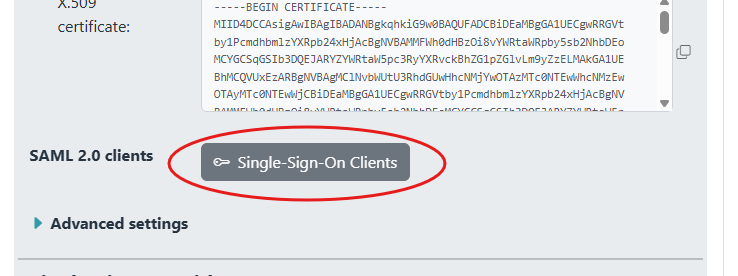
Now, return to Admidio's SSO preferences page, go to the “Single-Sign-On Client Administration” (the button right above the “Save” button), and create a new client.
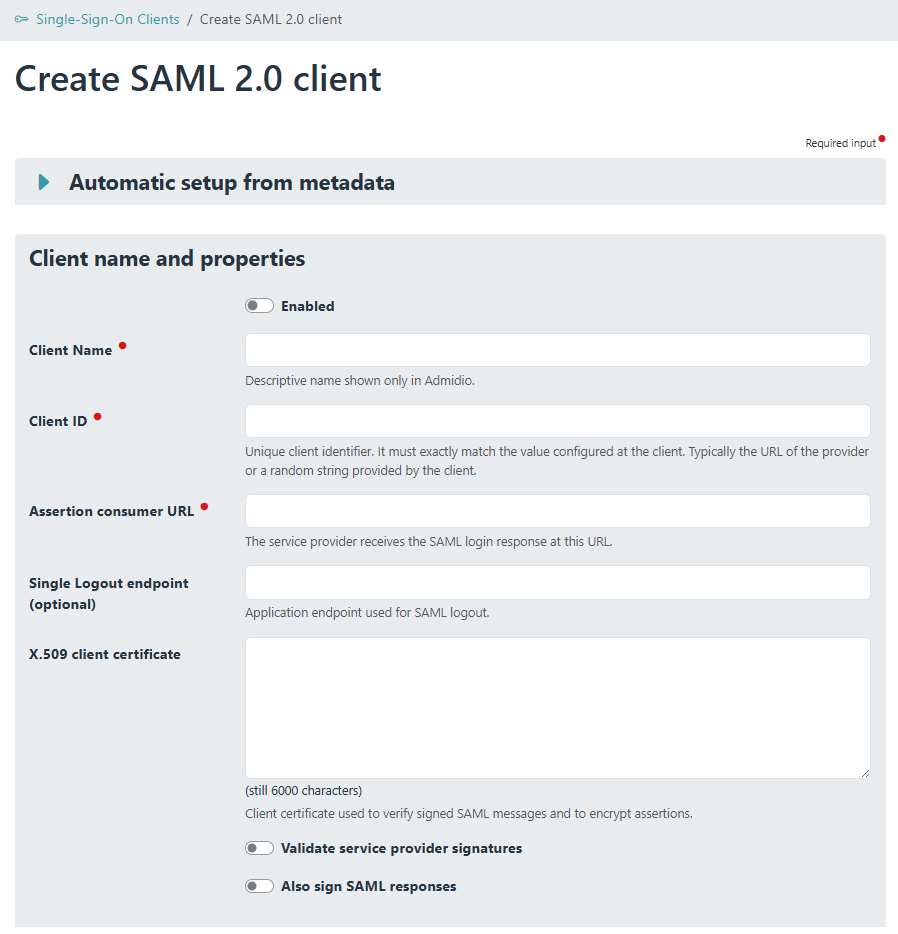
https://nextcloud.demo.open-tools.net/index.php/apps/user_saml/saml/metadata?idp=1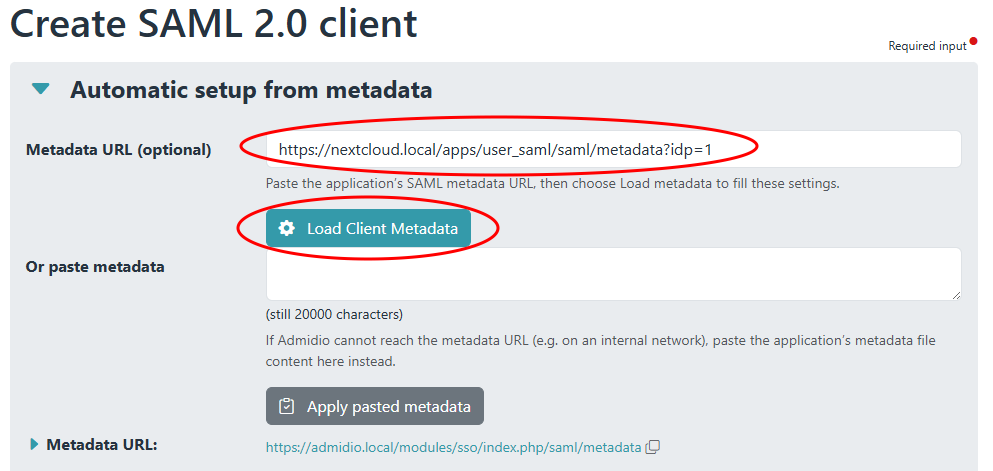
Paste the metadata URL copied from Nextcloud into the corresponding input field at the top and click “Load Client Metadata”. This should load all settings from Nextcloud and pre-fill the following fields correctly. Only the Client Name needs to be entered. Choose any name to clearly identify the client in the list of SAML clients. There is no functionality depending on the name.
In addition to the Entity ID and URLs to connect SP and IdP and the certificate, which are configured automatically, one also needs to define the attribute and role mapping. The username is the most relevant. To use Admidio's group memberships as Nextcloud groups, make sure to include the “Roles” field and provide the correct field name in Nextcloud. Internally, Nextcloud will add a prefix to the role names, which makes it impossible to assign admin rights to SAML groups (Nextcloud uses the group with internal name “admin” for administrators). If you want to assign admin rights through SAML, too, then you must enter a single space into the prefix field. This causes Nextcloud to take the role names verbatim as Nextcloud group names, including “admin”.
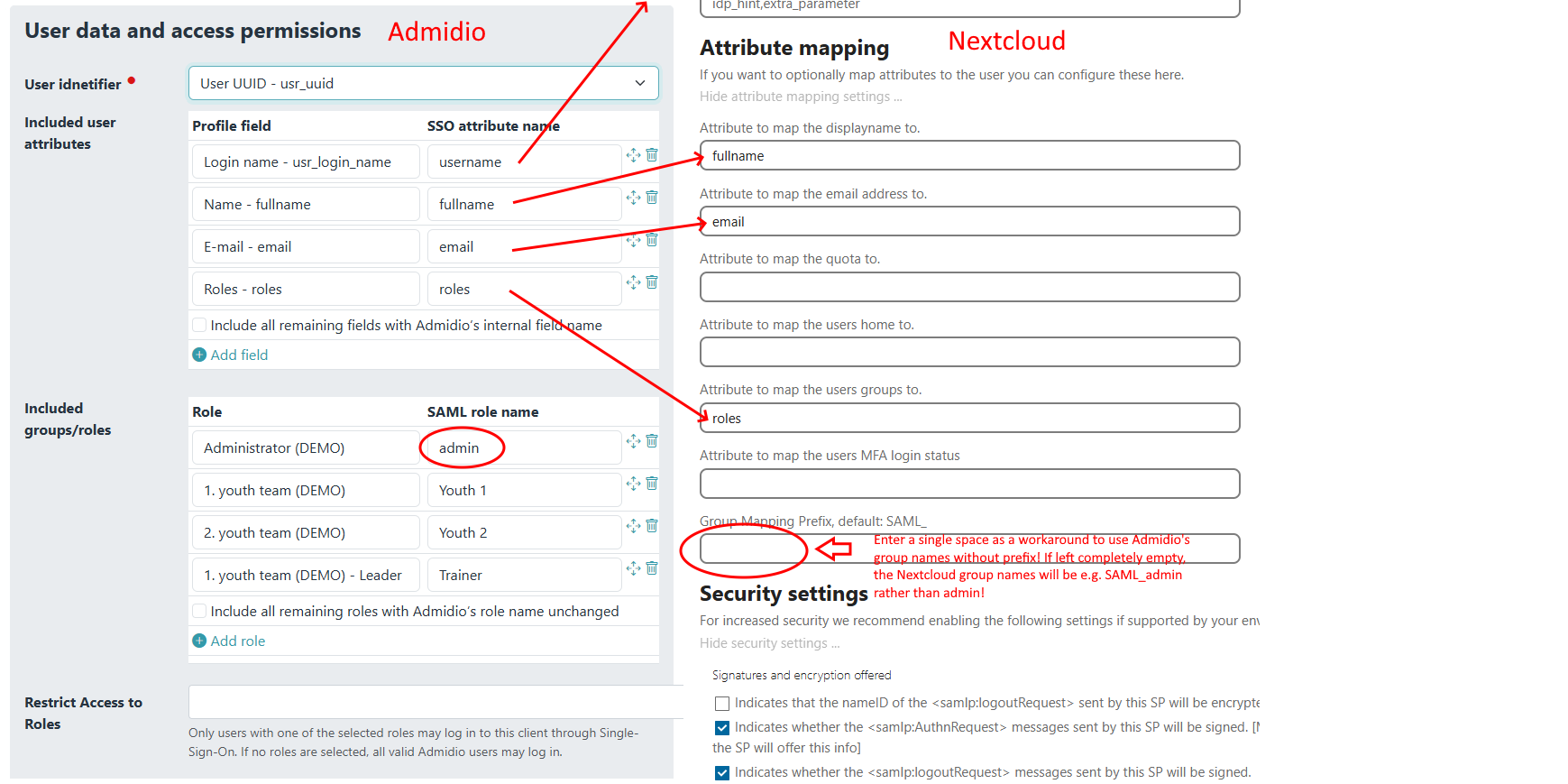
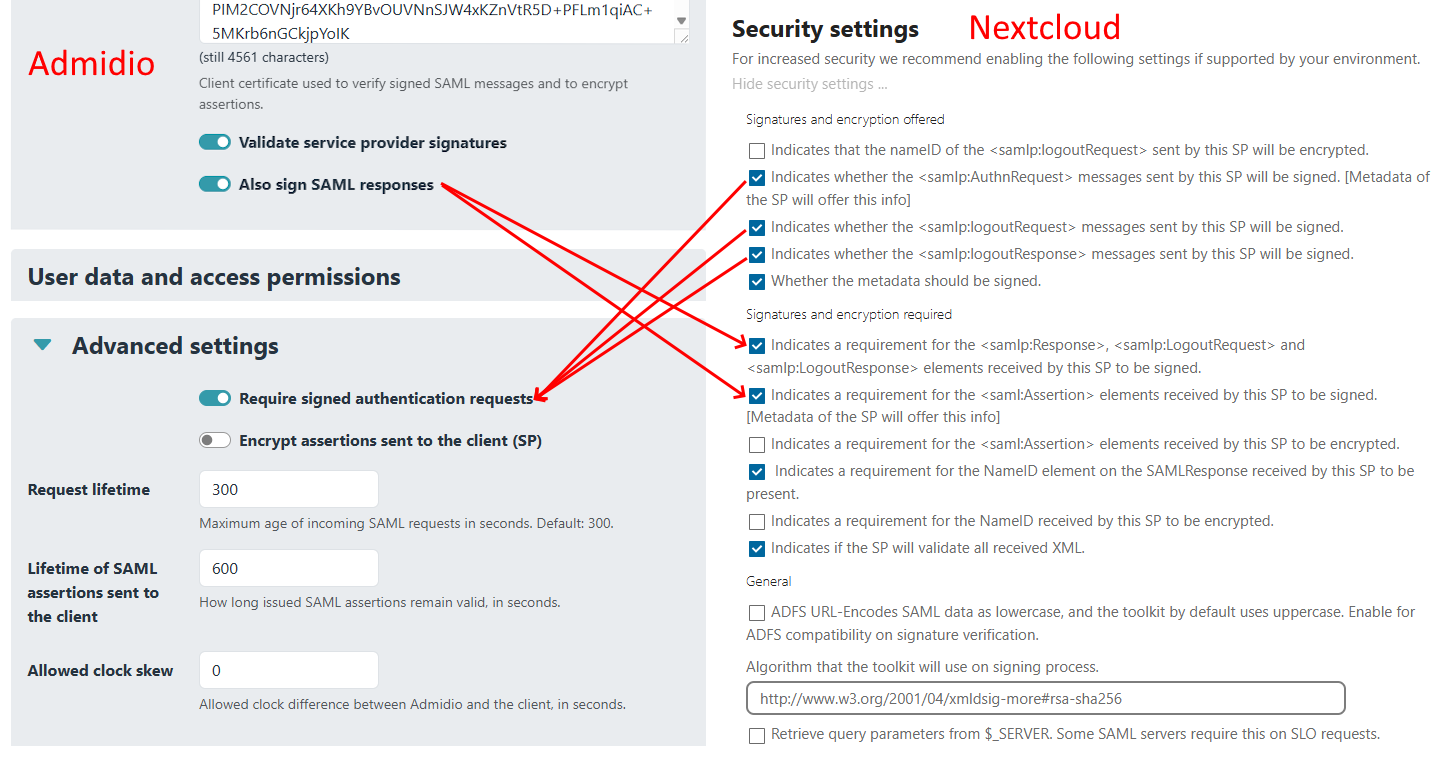
TODO: Describe signing and encryption settings (synced)
Setup completed, test Single-Sign-On
Admidio and Nextcloud should now be set up to use Admidio for logging in to Nextcloud. If you log out of Nextcloud, you should see the login screen with the choice of logging in with password or via SAML.
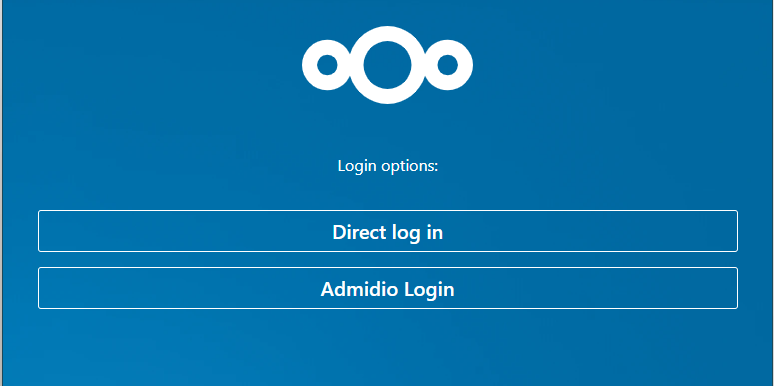
After choosing SAML login and loggin in with a user from Admidio, you should be logged in to Nextcloud.